
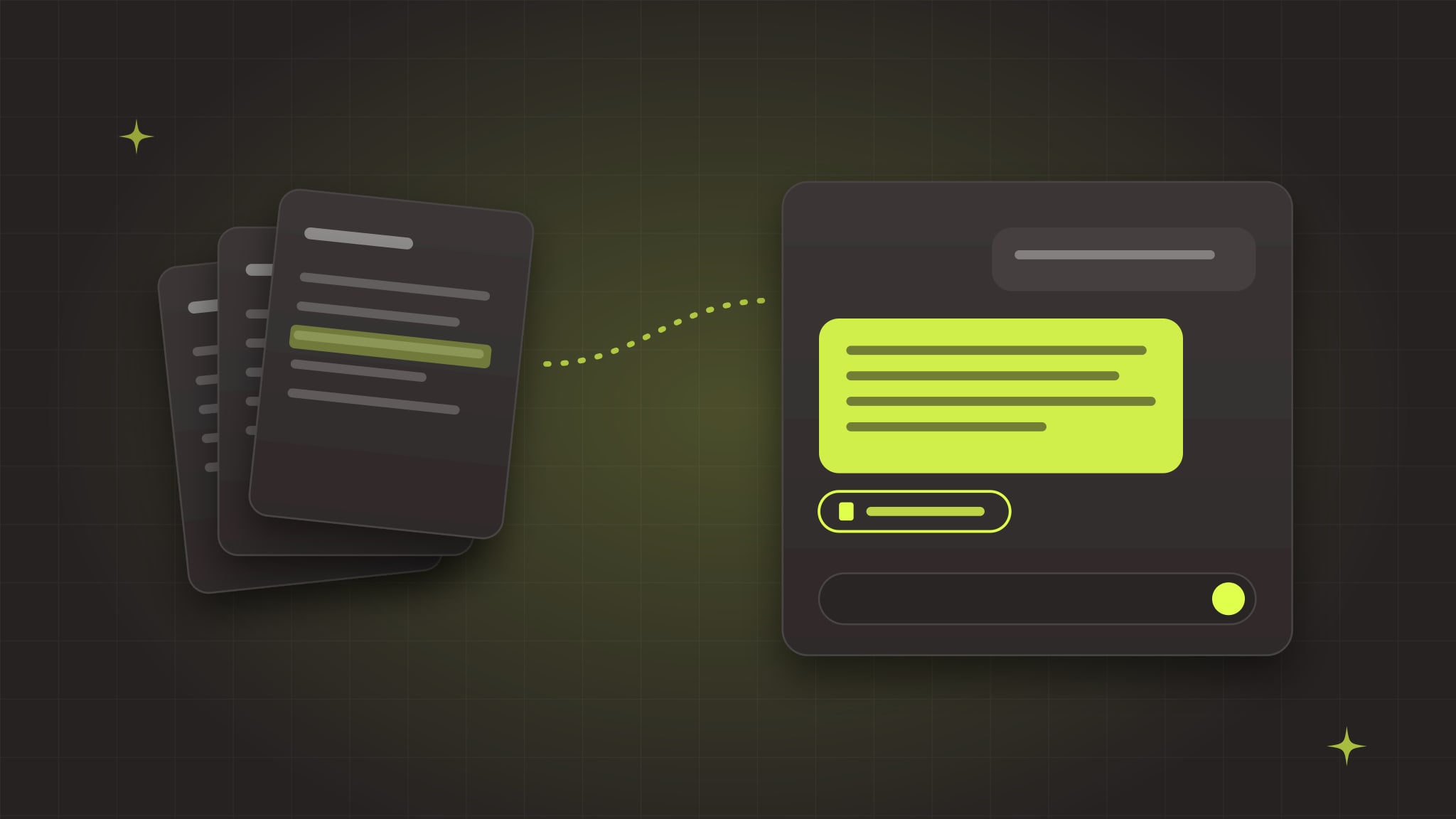
An internal AI assistant answers your team's questions from your own documents, such as SOPs, policies, price sheets, product specs, training materials and past proposals, and shows where each answer came from. Instead of digging through shared drives or interrupting the one person who knows, staff ask a question in plain English and get a short answer with a link to the source. The technology is mature enough for small businesses to use today, and you may already pay for part of it in Microsoft 365, Google Workspace or a business AI plan. The hard parts aren't the AI. They're getting your documents in order, making sure the assistant only shows people what they're allowed to see, and keeping answers accurate as documents change.
What it's good for
The best uses are questions your team asks over and over, where the answer already exists in writing:
- "How do we…?" Step-by-step answers from your SOPs: processing a return, onboarding a client, closing out a job.
- Policies: PTO, expenses, travel, safety, IT rules.
- Product and service details: specs, compatibility, what's included in each package, warranty terms.
- New-hire training: a patient, always-available guide to how things work.
- Sales and support: answers to common customer questions, past proposal language, approved wording.
- "Where is…?" Finding the right form, template or file without knowing its name.
It's less useful when answers depend on live data (today's schedule, current inventory, a customer's balance). That's a different project: connecting the assistant to your systems, not just your documents.
How it works, in plain English
Most document assistants use the same basic approach, often called retrieval-augmented generation:
- Your documents are indexed. The system reads your files and breaks them into searchable passages.
- A question comes in. "What's our return window for custom orders?"
- The system finds the most relevant passages from your documents.
- An AI model writes the answer using only those passages, and cites them.
- The person checks the source if the answer matters.
The AI isn't "trained" on your files. It looks them up each time, which is why updated documents can be reflected right away, and why the assistant can link to where an answer came from.
Your options, from simplest to most custom
1. Use what you already pay for
If your files live in Microsoft 365 or Google Workspace, their built-in AI assistants can already search and summarize documents you have access to. Business AI plans like ChatGPT Business or Claude for teams also let you upload files into a shared project for a group to ask questions about.
Good for: small teams, a modest set of documents, getting started quickly. Watch for: answers drawn from outdated or duplicate files, and documents people can see but shouldn't (more on that below).
2. A focused assistant on a curated set of documents
Pick the documents that matter (your SOP library, employee handbook, product catalog), clean them up, and put them in one dedicated assistant. This can be a shared project in a business AI plan or a small tool built on an automation platform such as n8n.
Good for: most small businesses. Curated sources give more accurate answers than "search everything."
3. A custom assistant connected to your systems
A custom build can pull from several sources (shared drives, your wiki, ticket history, CRM notes), respect each person's permissions, live inside the tools your team already uses (Teams, Slack, your intranet), log questions and answers, and hand off to a person when it isn't sure.
Good for: larger document sets, sensitive data, strict permission rules, or when you want the assistant embedded in a workflow rather than a separate chat window.
Problem 1: Permissions and oversharing
An assistant that can read everything will happily tell anyone anything. Before you connect it to your files, decide who should see what.
Built-in assistants usually follow your existing file permissions. Microsoft, for example, says Copilot "only surfaces organizational data to which individual users have at least view permissions" (Microsoft). That's good, but it also means any sloppy sharing becomes searchable. The salary spreadsheet shared with "everyone in the company" years ago, the HR folder with open access, the client contract in a public team channel: an AI assistant makes all of them easy to find.
So before you launch:
- Review sharing on sensitive folders: HR, payroll, finance, legal, client confidential.
- Remove "anyone with the link" and "everyone" access where it isn't needed.
- Start with a curated set of documents meant for everyone, rather than connecting the whole drive.
- Keep regulated data out unless your tools and agreements cover it. (Healthcare practices: see AI for dental and medical practices.)
- Use business plans with proper data controls, not personal AI accounts. Our guide to whether your business data is safe in ChatGPT explains what to look for.
Problem 2: Accuracy
AI assistants can give confident, wrong answers, especially when your documents disagree with each other or are out of date.
- Fix the source material first. If you have three versions of the same SOP, the assistant may quote the wrong one. Archive old versions and mark one as current. Our guide to documenting a process helps if your SOPs need work.
- Require citations. Every answer should link to the document it came from, so people can check.
- Tell it to say "I don't know." An assistant that admits it can't find an answer is far more useful than one that guesses.
- Test it with real questions. Collect 30 to 50 questions your team actually asks, with the correct answers, and check the assistant against them before rollout and after big document changes.
- Name an owner for each document set, responsible for keeping it current.
Problem 3: Keeping it current
The assistant is only as good as its documents. Build updating into how you work:
- When a process changes, update the SOP, not just a Slack message.
- Review the most-asked questions monthly. Repeated "I don't know" answers show you which documents are missing.
- Retire outdated documents instead of letting them pile up.
How to start
- Pick one audience and one document set. For example: new-hire questions answered from the employee handbook and top 20 SOPs.
- Clean up those documents. Remove duplicates, fix outdated steps, mark what's current.
- Check permissions on everything the assistant will read.
- Write a list of real test questions with correct answers.
- Pilot with a small group for a few weeks. Collect wrong or missing answers and fix the documents behind them.
- Expand to more documents and people once answers are reliable.
For budget planning, see what AI automation costs a small business. Our AI readiness checklist also covers getting your documents and data ready.
Internal AI assistants from Prodjex
Prodjex is a Kansas City area software and automation company. Our AI automation service helps businesses set up internal assistants the safe way: choosing between the tools you already pay for and a custom build, cleaning up and structuring the source documents, fixing permissions before anything is connected, and testing answers against real questions before rollout. When a custom assistant makes sense, we build it into the tools your team already uses.
Not sure where to start? Our AI Readiness Audit looks at your documents, data and workflows and gives you a ranked, costed plan, including whether an internal assistant is worth doing first. The price is fixed and agreed before we start.
Book a free call and tell us what your team keeps asking. We'll tell you whether an AI assistant would answer it.